CAPTCHA Solver API for Playwright: Step-by-Step Guide
Playwright is a powerful browser automation framework used by developers to test web applications, automate browser interactions, and build reliable end-to-end testing workflows. However, automated tests may encounter CAPTCHA challenges that interrupt normal browser interactions.
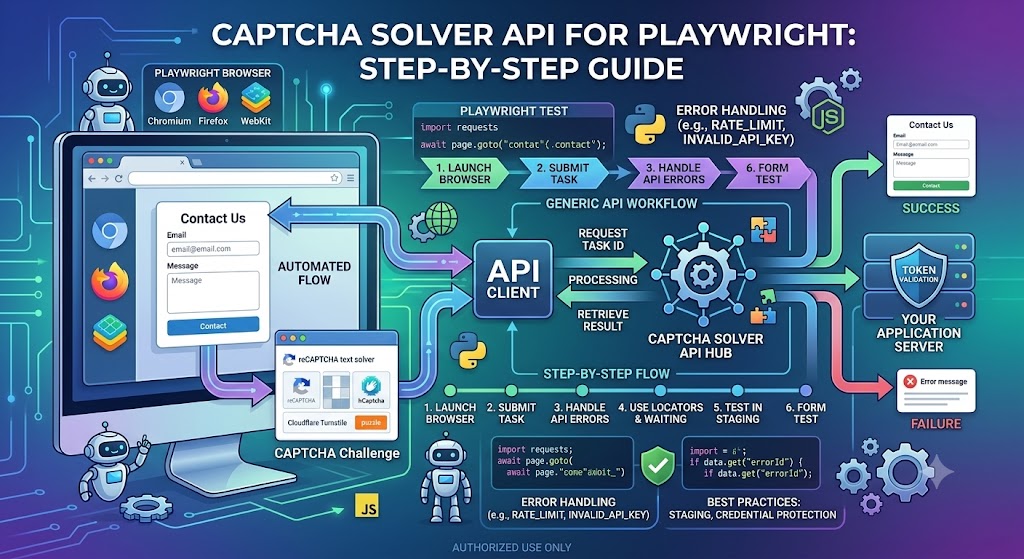
A CAPTCHA Solver API for Playwright allows an application to communicate with a CAPTCHA-related API for supported tasks. Depending on the provider and use case, the API can return a result that an authorized application may use within its verification or testing workflow.
In this guide, you will learn what Playwright is, how CAPTCHA APIs fit into browser automation, how to set up a Python environment, how to make API requests, and how to handle common errors.
We will also explore testing strategies that make Playwright automation more reliable without depending on unpredictable production CAPTCHA challenges.
What Is Playwright?
Playwright is an open-source browser automation framework developed by Microsoft. It supports Chromium, Firefox, and WebKit, making it useful for cross-browser testing and automation.
Developers commonly use Playwright for:
- End-to-end testing
- UI testing
- Regression testing
- Form automation
- Browser-based workflows
- Screenshot testing
- Web application debugging
- Continuous integration testing
Playwright supports Python, JavaScript, TypeScript, Java, and .NET.
Its automatic waiting behavior, browser contexts, and modern locator API make it particularly useful for testing dynamic web applications.
For installation and configuration details, see the official Playwright documentation.
What Is a CAPTCHA Solver API?
A CAPTCHA Solver API is a service that processes supported CAPTCHA-related tasks through an HTTP API or another documented interface.
A typical API workflow may involve:
- Authenticating with an API key.
- Submitting a task.
- Receiving a task identifier.
- Checking the result if processing is asynchronous.
- Handling errors or unsuccessful tasks.
The exact process depends on the provider.
Some APIs return results immediately, while others require polling or another asynchronous mechanism.
A CAPTCHA API and Playwright serve different purposes:
- Playwright controls the browser and tests web application behavior.
- CAPTCHA API processes supported tasks according to the provider's documented interface.
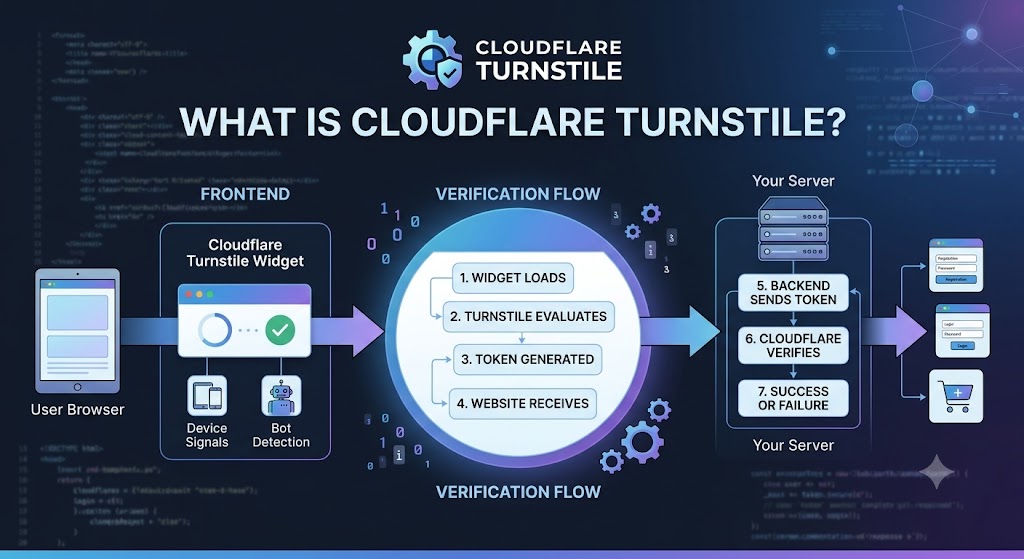
- Application backend validates verification results and decides whether a protected action is allowed.
A successful API request does not necessarily mean the target website has accepted a verification result.
Why Use a CAPTCHA API With Playwright?
CAPTCHA challenges can complicate automated testing because their behavior may vary depending on the environment, browser, configuration, and risk signals.
For authorized development and testing, a CAPTCHA API may be useful when a documented integration is part of the application's approved workflow.
1. Automated Testing
Developers can test how a web application responds when CAPTCHA verification succeeds or fails.
For repeatable tests, dedicated test keys, test configurations, or mocked verification responses are often preferable to relying on production challenges.
2. Regression Testing
A frontend change may accidentally break a form or verification component.
Playwright can test the complete form workflow and confirm that the application displays the expected success or error message.
3. Cross-Browser Testing
Playwright supports multiple browser engines. This allows teams to verify that their application behaves consistently across supported browsers.
4. Integration Testing
Developers can test the interaction between the frontend, backend, and verification service.
This may include:
- Successful verification
- Failed verification
- Missing tokens
- Expired tokens
- API timeouts
- Invalid configuration
5. Continuous Integration
Playwright can run automated tests in CI environments. Using a controlled CAPTCHA test configuration helps make these tests more predictable and easier to maintain.
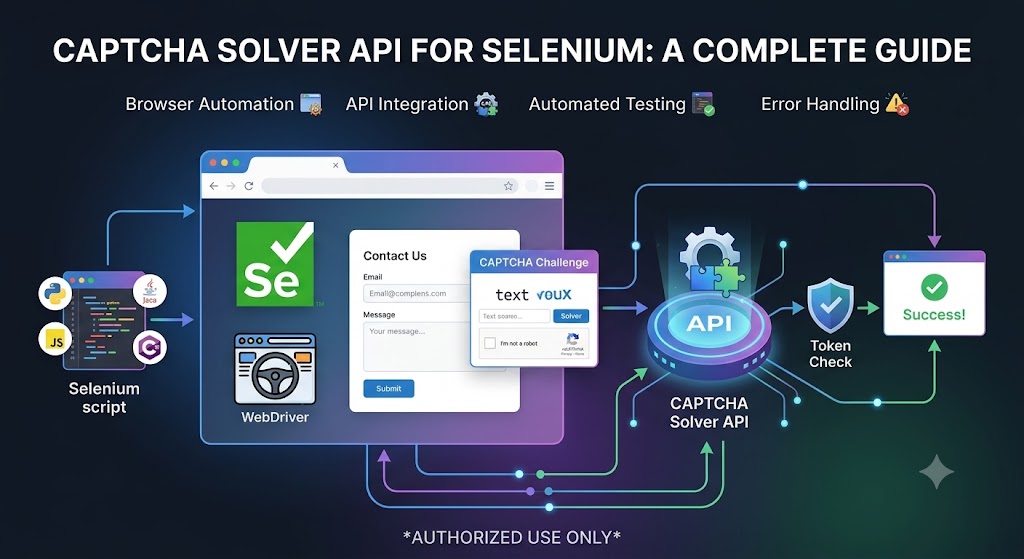
Playwright vs Selenium for Browser Automation
Both Playwright and Selenium are popular tools for browser automation.
| Feature | Playwright | Selenium |
|---|---|---|
| Browser automation | Yes | Yes |
| Cross-browser testing | Yes | Yes |
| Automatic waiting | Built in for many actions | Often uses explicit waits |
| Browser contexts | Built in | Depends on browser and session setup |
| Python support | Yes | Yes |
| JavaScript and TypeScript | Yes | Yes |
| End-to-end testing | Yes | Yes |
| CAPTCHA API integration | Requires a separate API integration where appropriate | Requires a separate API integration where appropriate |
Neither framework automatically solves every CAPTCHA. Both need to follow the website's intended verification process and any applicable provider requirements.
Prerequisites
Before starting, prepare:
- Python 3
- Playwright for Python
- The required browser binaries
- An authorized website or staging environment
- API credentials, if required by your approved workflow
- The current API documentation for your chosen provider
Install Playwright
Run the following commands:
pip install playwright requests
playwright install
The first command installs Playwright and the Python HTTP library. The second installs the browser binaries supported by Playwright.
If you only need to test the application's CAPTCHA integration, you may not need a live CAPTCHA-solving API. A test configuration or mock can be sufficient.
Step 1: Launch a Browser With Playwright
Start with a simple script that opens a webpage and reads its title.
from playwright.sync_api import sync_playwright

with sync_playwright() as p:
    browser = p.chromium.launch(headless=True)

    page = browser.new_page()
    page.goto(
        "https://example.com",
        wait_until="domcontentloaded"
    )

    print("Page title:", page.title())

    browser.close()
This script demonstrates the basic Playwright workflow:
- Start Playwright.
- Launch Chromium.
- Open a new page.
- Navigate to a website.
- Read page information.
- Close the browser.
Replace the example domain with a website you own or are authorized to test.
Step 2: Understand the CAPTCHA API Request
Before connecting an API to your application, check its current documentation.
Depending on the provider, the request may require:
- API credentials
- Task type
- Page URL
- Site key
- Additional task-specific parameters
A generic HTTP request might look like this:
import os
import requests

API_KEY = os.getenv("CAPTCHA_API_KEY")
API_URL = os.getenv("CAPTCHA_API_URL")

if not API_KEY or not API_URL:
    raise RuntimeError(
        "Configure CAPTCHA_API_KEY and CAPTCHA_API_URL"
    )

response = requests.post(
    API_URL,
    headers={
        "Authorization": f"Bearer {API_KEY}"
    },
    json={
        "task": "YOUR_DOCUMENTED_TASK_TYPE"
    },
    timeout=30,
)

response.raise_for_status()
result = response.json()

print(result)
Note: This is a generic example, not a verified AllCaptcha API request. The endpoint, authentication format, request fields, and task type must match the provider's actual documentation. Some providers use a JSON field for authentication instead of an HTTP authorization header.
Never hardcode private API credentials in public source code.
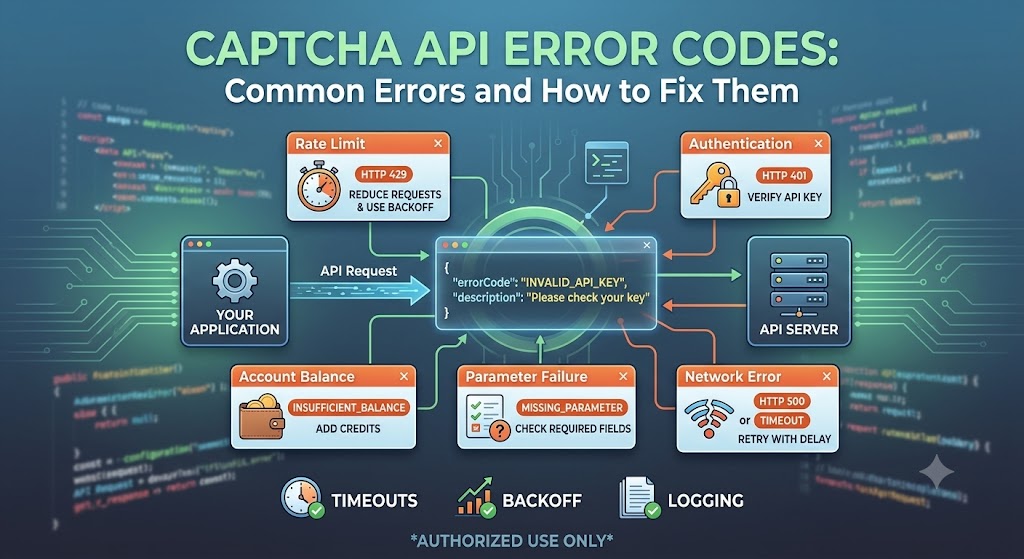
Step 3: Handle API Responses Correctly
An HTTP request can succeed while the API reports an application-level error.
For example, the provider may reject a request because the API key is invalid, a required parameter is missing, or the requested task type is unsupported.
A generic response validator might look like this:
def validate_api_response(data):
    if not isinstance(data, dict):
        raise ValueError("Unexpected API response format")

    if data.get("errorId"):
        raise RuntimeError(
            f"API error: {data.get('errorCode', 'UNKNOWN')} - "
            f"{data.get('errorDescription', 'No description')}"
        )

    return data
This example assumes the API uses errorId, errorCode, and errorDescription. If your provider uses a different response format, update the validator accordingly.
Always distinguish between transport errors, API-level errors, and unsuccessful task results.
Step 4: Use Playwright Locators and Automatic Waiting
One of Playwright's main advantages is its built-in waiting behavior for many browser actions.
Instead of relying on fixed delays, use locators and assertions to wait for the expected state.
For example:
from playwright.sync_api import sync_playwright, expect

with sync_playwright() as p:
    browser = p.chromium.launch(headless=True)
    page = browser.new_page()

    page.goto("https://example.com")

    heading = page.locator("h1")

    expect(heading).to_be_visible()

    print(heading.inner_text())

    browser.close()
This example waits for the heading to become visible before reading it.
For dynamic forms, use stable selectors and wait for the relevant state instead of assuming every page loads at the same speed.
Step 5: Test CAPTCHA Verification in a Staging Environment
The recommended approach for applications you control is to separate browser testing from live anti-bot detection.
A typical testing architecture looks like this:
Playwright Test
      |
      v
Staging Application
      |
      v
Controlled CAPTCHA Configuration
      |
      v
Mock or Official Test Verification
      |
      v
Expected Application Result
Depending on the CAPTCHA provider, you may be able to use official test keys, test modes, or mocked backend verification responses.
This helps your tests verify the application's behavior without depending on unpredictable production challenges.
For example, you can test:
- A valid verification result allows a form submission.
- An invalid verification result is rejected.
- A missing token produces the expected error.
- A verification timeout is handled gracefully.
- A failed verification does not trigger the protected action.
Step 6: Write a Playwright Form Test
The following example tests a form on a staging website you control.
It assumes the staging environment has an approved mechanism for controlling the verification result.
from playwright.sync_api import sync_playwright, expect

with sync_playwright() as p:
    browser = p.chromium.launch(headless=True)

    page = browser.new_page()
    page.goto(
        "https://your-staging-site.example/contact"
    )

    page.get_by_label("Email").fill(
        "[email protected]"
    )

    page.get_by_label("Message").fill(
        "Automated test submission"
    )

    ## Use the staging environment's approved
    ## CAPTCHA test configuration here.

    page.get_by_role(
        "button",
        name="Submit"
    ).click()

    ## Replace this locator with the success indicator
    ## used by your application.
    expect(
        page.locator("#success-message")
    ).to_be_visible()

    browser.close()
Update the URL, form labels, button name, and success selector to match your application.
This example tests the expected form behavior. It does not bypass a live CAPTCHA or assume that an external API response is sufficient to authorize a submission.
Common CAPTCHA API and Playwright Errors
Even a correctly designed integration may encounter errors. Understanding the cause helps you troubleshoot efficiently.
1. Invalid API Key
Possible causes:
- Incorrect credentials
- Missing environment variables
- Revoked API key
- Incorrect authentication format
How to fix it:
- Confirm the key in your API account.
- Verify the required authentication method.
- Check the environment where the script is running.
- Keep credentials out of public repositories.
2. API Request Timeout
A request may time out because of network issues or temporary service problems.
How to fix it:
- Configure a reasonable HTTP timeout.
- Log the error without exposing sensitive information.
- Retry only appropriate temporary failures.
- Follow the provider's documented rate limits.
3. Unsupported Task Type
Not all CAPTCHA APIs support every CAPTCHA technology.
How to fix it:
- Check the current provider documentation.
- Confirm the supported task type.
- Verify all required parameters.
4. Playwright Element Not Found
A locator may fail if the page structure changes or the expected element is not available.
How to fix it:
- Check the current page URL.
- Use stable test IDs or accessible labels.
- Wait for the correct page state.
- Capture a screenshot when a test fails.
5. Browser Installation Error
Playwright may fail to launch a browser if the required browser binaries or operating system dependencies are missing.
How to fix it:
- Run
playwright install. - Review the official installation instructions.
- Check the CI environment's browser dependencies.
6. Verification Rejected by the Application
An API request may succeed, but the website's backend may reject the verification result.
How to fix it:
- Inspect the backend verification logs.
- Confirm the expected token format.
- Check whether the token is expired or invalid.
- Verify that the application uses the correct test configuration.
For related troubleshooting, link this section to your article about CAPTCHA API error codes.
Best Practices for Playwright CAPTCHA API Integration
1. Use a Staging Environment
Keep routine automated tests separate from production security challenges whenever possible.
2. Protect API Credentials
Use environment variables or a secrets manager. Never expose private API keys in frontend JavaScript or public repositories.
3. Separate Browser and API Logic
Keep browser automation, API requests, response validation, and test assertions in separate functions or modules.
4. Set Timeouts
Configure timeouts for API calls and browser operations so that failures do not cause tests to hang indefinitely.
5. Use Limited Retries
Retry only errors that may be temporary. Invalid credentials and invalid parameters should be corrected instead of retried repeatedly.
6. Log Errors Safely
Record timestamps, test names, HTTP status codes, and non-sensitive error details. Avoid logging secrets or private user information.
7. Respect Website Policies
Only automate systems you own or have explicit permission to test. Follow applicable service terms, access policies, and rate limits.
CAPTCHA Solver API vs. Mock Verification
For automated testing, developers should consider whether they actually need a live CAPTCHA API.
| Approach | Best Use Case | Main Limitation |
|---|---|---|
| Mock verification | Fast, repeatable application tests | Does not test the external provider |
| Official test configuration | Testing a supported CAPTCHA integration | May not reproduce all production conditions |
| Manual verification | Exploratory testing | Difficult to scale |
| Live API integration | Authorized workflows that require the provider | Adds external dependencies and failure modes |
For most regression suites, mocked verification or an official test configuration offers a more predictable experience. A live API integration may be appropriate when testing the actual provider interaction is a requirement.
Frequently Asked Questions
What is a CAPTCHA Solver API for Playwright?
It is an API service that processes supported CAPTCHA-related tasks and can be integrated into an application that uses Playwright. The exact capabilities depend on the provider and its documentation.
Can I use Playwright with Python and a CAPTCHA API?
Yes. Playwright automates the browser, while Python's HTTP libraries can communicate with an API. You must follow the provider's documented request and response formats.
Does Playwright solve CAPTCHAs automatically?
No. Playwright is a browser automation framework. It does not automatically solve every CAPTCHA or replace a website's verification process.
Can I use Playwright for CAPTCHA testing?
Yes. For applications you own or are authorized to test, Playwright can verify successful and unsuccessful CAPTCHA flows using a controlled test environment.
Is Playwright better than Selenium?
Neither tool is universally better. Playwright offers features such as automatic waiting and browser contexts, while Selenium is widely used across existing testing environments. The best choice depends on your project's requirements.
Why does my Playwright test fail when a CAPTCHA appears?
The challenge may interrupt the expected application flow. For repeatable testing, use an approved staging configuration or a provider-supported testing mechanism rather than depending on production anti-bot behavior.
Can I integrate AllCaptcha with Playwright?
That depends on the current AllCaptcha API capabilities and supported task types. Review the official API documentation for the required endpoint, authentication method, request parameters, and response structure before implementing an integration.
How do I debug CAPTCHA API errors?
Start by checking the HTTP status code, API error response, credentials, request parameters, network connectivity, and provider documentation. Log useful diagnostic information without exposing secrets.
Conclusion
A CAPTCHA Solver API for Playwright may be useful in certain authorized automation and testing workflows, but a reliable integration requires careful planning.
Playwright handles browser interactions, the API processes supported tasks, and the application's backend remains responsible for validating verification results.
For predictable end-to-end tests, begin with a staging environment and an official test configuration or mocked verification response. Add a live API integration only when it is necessary for your use case.
If you are evaluating AllCaptcha, check its current documentation before implementing provider-specific code. Confirm the supported CAPTCHA types, authentication method, endpoint URLs, request parameters, response format, and applicable usage limits.
Recommended next step: Read related guides on CAPTCHA API error codes, Python integration, Selenium automation, and CAPTCHA API pricing to build a complete understanding of CAPTCHA API development.