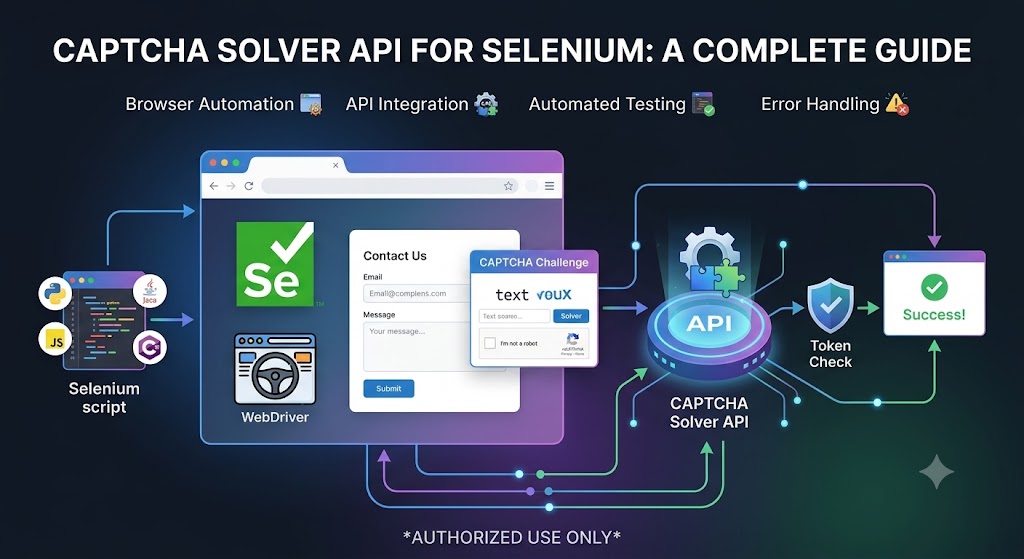
CAPTCHA Solver API for Selenium: A Complete Guide
Selenium is a popular browser automation framework used by developers to automate web applications, run functional tests, and perform repetitive browser tasks. However, automated browser sessions may encounter CAPTCHA challenges that interrupt the workflow.
A CAPTCHA Solver API for Selenium is a service that allows an application to communicate with a CAPTCHA-related API instead of implementing all the processing logic itself. Depending on the provider and supported CAPTCHA type, an API may return a result that an authorized application can use in its verification or testing workflow.
In this guide, you will learn how Selenium works, how CAPTCHA APIs fit into a browser automation architecture, how to integrate Python with an API, how to handle errors, and how to make automated tests more reliable.
Whether you are a beginner or an experienced developer, this guide will help you understand the main components of a Selenium and CAPTCHA API integration.
What Is Selenium?
Selenium is an open-source browser automation framework that allows developers to control web browsers programmatically.
With Selenium WebDriver, you can automate actions such as:
- Opening web pages
- Clicking buttons and links
- Filling out forms
- Selecting dropdown options
- Checking page content
- Testing login and registration flows
- Running cross-browser tests
Selenium supports multiple programming languages, including Python, Java, JavaScript, and C#. It can also work with major browsers through their respective WebDriver implementations.
For installation and setup, consult the official Selenium documentation.
What Is a CAPTCHA Solver API?
A CAPTCHA Solver API is a service that accepts a request, processes a supported CAPTCHA task, and returns a response to the application.
A typical API workflow includes:
- Authenticating the request.
- Submitting the required task information.
- Receiving a task identifier or response.
- Retrieving the result when processing is complete.
- Handling errors or unsuccessful tasks.
The exact workflow depends on the API provider. Some APIs use synchronous requests, while others process tasks asynchronously.
A CAPTCHA API is not a replacement for Selenium. Selenium controls the browser, while the API handles the specific task supported by the provider.
Why Use a CAPTCHA API With Selenium?
CAPTCHA challenges can interrupt automated tests, particularly when testing applications that use third-party verification systems.
For authorized testing and development, an API integration may be relevant when the application has an approved workflow for handling CAPTCHA verification.
Common use cases include:
1. Automated Testing
Developers can test how their applications respond to successful and unsuccessful CAPTCHA verification.
For repeatable tests, a staging environment with dedicated test configurations is usually preferable to depending on unpredictable production challenges.
2. Regression Testing
A website update may change how a form, authentication flow, or verification component behaves.
Selenium can test the surrounding user journey, while a controlled CAPTCHA test configuration helps keep the test results consistent.
3. Browser Automation Workflows
Teams may use Selenium for authorized internal workflows and administrative tasks. If a CAPTCHA is part of the workflow, the automation design should follow the application's approved verification process.
4. Integration Testing
Developers can verify that their frontend, backend, and verification service communicate correctly.
This includes checking token validation, failure handling, timeouts, and user-facing error messages.
How Does a CAPTCHA API Work With Selenium?
The architecture depends on the CAPTCHA type and the API provider, but a typical integration may look like this:
Python Application
        |
        v
Selenium WebDriver
        |
        v
Browser and Web Application
        |
        v
Authorized CAPTCHA Workflow
        |
        v
CAPTCHA API (if applicable)
        |
        v
Application Verification
        |
        v
Test Result
There are two separate responsibilities:
- Selenium: Controls the browser and performs test actions.
- CAPTCHA API: Processes supported tasks according to its documented interface.
The website's own backend remains responsible for validating verification results and enforcing access rules.
An API response should not automatically be treated as proof that a website has accepted a verification token. The application's actual verification result must be checked.
Prerequisites
Before building a Selenium integration, prepare the following:
- Python 3
- Selenium
- A compatible browser
- An authorized test website or staging environment
- An API account, if your approved workflow requires one
- The API provider's current documentation
Install Selenium using pip:
pip install selenium requests
The selenium package provides browser automation functionality, while requests can be used to send HTTP requests to an API.
Modern Selenium installations can use Selenium Manager to assist with browser driver management. Refer to the official documentation if you encounter browser or driver configuration issues.
Step 1: Launch a Browser With Selenium
First, create a simple Selenium script that opens a page you own or are authorized to test.
from selenium import webdriver
from selenium.webdriver.common.by import By

driver = webdriver.Chrome()

try:
    driver.get("https://example.com")

    print("Page title:", driver.title)

    heading = driver.find_element(By.TAG_NAME, "h1")
    print("Heading:", heading.text)

finally:
    driver.quit()
Replace the example domain with your authorized test environment.
This script demonstrates the basic Selenium workflow:
- Start a browser session.
- Open a webpage.
- Find an element.
- Read its text.
- Close the browser session.
It is good practice to use try/finally so that the browser is closed even when an exception occurs.
Step 2: Understand the API Request Format
Before writing API integration code, read the provider's documentation carefully.
An API may require fields such as:
- API credentials
- Task type
- Page URL
- Site key or other task-specific configuration
- Additional parameters
The exact field names, endpoint URLs, and authentication method vary by provider.
A generic request might look like this:
import os
import requests

API_KEY = os.getenv("CAPTCHA_API_KEY")
API_URL = os.getenv("CAPTCHA_API_URL")

if not API_KEY or not API_URL:
    raise RuntimeError(
        "Configure CAPTCHA_API_KEY and CAPTCHA_API_URL"
    )

response = requests.post(
    API_URL,
    headers={
        "Authorization": f"Bearer {API_KEY}"
    },
    json={
        "task": "YOUR_DOCUMENTED_TASK_TYPE"
    },
    timeout=30,
)

response.raise_for_status()

data = response.json()
print(data)
Important: This is a generic HTTP example, not a verified AllCaptcha request format. The authentication header, endpoint, and task fields must match the API provider's current documentation. Do not copy this example into production without adapting it.
Step 3: Handle API Responses
An API request can succeed at the HTTP level but still report an application-level error.
For example, an API may return a response indicating that a task is invalid, the credentials are incorrect, or the account has insufficient balance.
A basic response-handling pattern looks like this:
def validate_api_response(data):
    if not isinstance(data, dict):
        raise ValueError("Unexpected API response format")

    if data.get("errorId"):
        raise RuntimeError(
            f"API error: {data.get('errorCode', 'UNKNOWN')} "
            f"- {data.get('errorDescription', 'No description')}"
        )

    return data
This example assumes that the provider uses the illustrated errorId, errorCode, and errorDescription fields. Adapt the function if your API uses a different response schema.
Never assume that every provider uses the same error format.
Step 4: Use Selenium Waits Instead of Fixed Delays
A common mistake in browser automation is using long, fixed delays:
import time

time.sleep(10)
This can make tests slow when the page loads quickly and unreliable when it loads slowly.
Selenium provides explicit waits that allow your script to wait for a particular condition.
For example:
from selenium.webdriver.common.by import By
from selenium.webdriver.support.ui import WebDriverWait
from selenium.webdriver.support import expected_conditions as EC

wait = WebDriverWait(driver, 15)

submit_button = wait.until(
    EC.element_to_be_clickable(
        (By.CSS_SELECTOR, "button[type='submit']")
    )
)

print("Submit button is ready")
Explicit waits are useful for dynamic pages, asynchronous requests, and form interactions.
For more details, see the Selenium documentation on WebDriver.
Step 5: Test CAPTCHA Verification in a Controlled Environment
For an application you own, the most reliable approach is to create a dedicated testing workflow.
For example:
Staging Website
       |
       v
Test Configuration
       |
       v
Selenium Test
       |
       v
Mock or Approved Verification
       |
       v
Assert Expected Result
Depending on the CAPTCHA provider, your testing setup may support official test keys, test modes, mocked verification responses, or a dedicated staging configuration.
This approach lets you test both successful and unsuccessful verification without relying on production anti-bot behavior.
For example, a test can check that a form is accepted when verification succeeds and rejected when verification fails.
Example: Test a Form With Selenium
The following example tests the behavior of a form in an application you control. It assumes the test environment has a supported mechanism for controlling the verification result.
from selenium import webdriver
from selenium.webdriver.common.by import By
from selenium.webdriver.support.ui import WebDriverWait
from selenium.webdriver.support import expected_conditions as EC

driver = webdriver.Chrome()

try:
    driver.get("https://your-staging-site.example/contact")

    wait = WebDriverWait(driver, 15)

    email_input = wait.until(
        EC.visibility_of_element_located(
            (By.NAME, "email")
        )
    )

    email_input.send_keys("[email protected]")

    message_input = driver.find_element(
        By.NAME, "message"
    )

    message_input.send_keys("Automated test submission")

    ### Use the staging environment's approved
    ### verification test configuration here.

    submit_button = driver.find_element(
        By.CSS_SELECTOR, "button[type='submit']"
    )

    submit_button.click()

    # Replace this locator with the success indicator
    # used by your own application.
    success_message = wait.until(
        EC.visibility_of_element_located(
            (By.ID, "success-message")
        )
    )

    assert success_message.is_displayed()

finally:
    driver.quit()
This example tests a normal form submission. It does not bypass a live CAPTCHA or assume that an API response automatically makes a submission valid.
Update the form fields and success-message locator to match your application.
Common CAPTCHA API and Selenium Errors
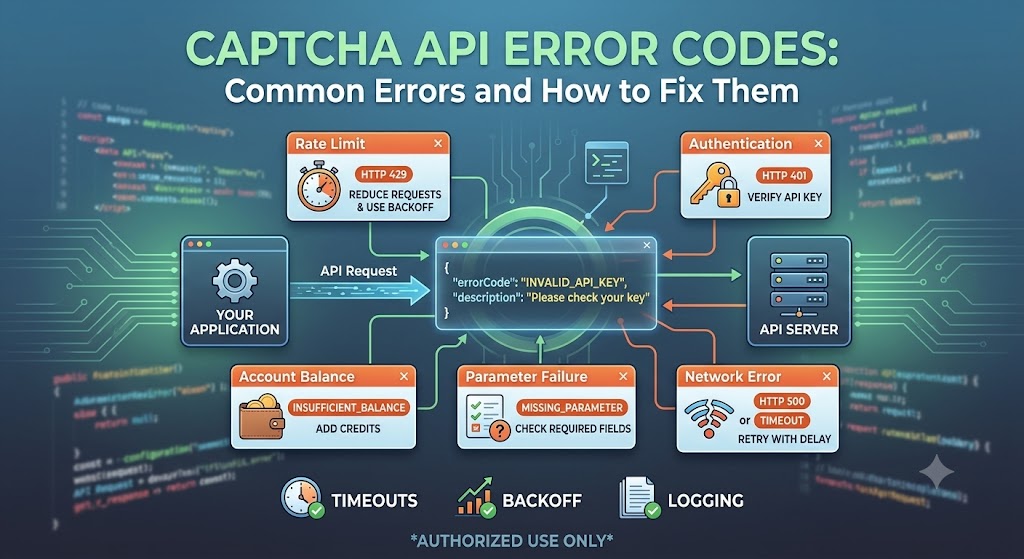
Even a correctly designed integration can encounter errors. Understanding the cause helps you decide whether to fix the configuration, adjust the test, or retry a temporary request.
1. Invalid API Credentials
Possible causes:
- Incorrect API key
- Missing environment variable
- Revoked credentials
- Incorrect authentication method
How to fix it:
- Confirm the key in your provider account.
- Check the required authentication format.
- Make sure the application loads the correct environment variables.
- Keep secret credentials out of source control.
2. API Request Timeout
A request may take longer than expected because of network issues or a temporary service problem.
How to fix it:
- Set a reasonable request timeout.
- Log the failure.
- Retry only when the error is temporary and retrying is appropriate.
- Follow the provider's documented limits.
3. Invalid Task Parameters
An API may reject a request if a required field is missing or a task type is unsupported.
How to fix it:
- Review the provider's current API documentation.
- Validate the request before sending it.
- Confirm that the requested task type is supported.
4. Selenium Element Not Found
A page may not have finished loading, or an element locator may no longer match the page.
How to fix it:
- Use explicit waits.
- Check the element's selector.
- Verify that the correct page loaded.
- Review screenshots or browser logs from the failed test.
5. Browser or Driver Problems
Browser and WebDriver configuration issues can prevent Selenium from starting or controlling a browser.
How to fix it:
- Check that the browser is installed.
- Update Selenium when appropriate.
- Review Selenium Manager output.
- Confirm that your CI environment supports the selected browser.
6. Verification Rejected by the Website
An API request may return successfully while the website still rejects the verification result.
How to fix it:
- Inspect the application's server-side verification logs.
- Confirm the expected token and validation flow.
- Check whether the token is expired or invalid.
- Test with the provider's supported test configuration.
For more API troubleshooting ideas, link this section to your related article on CAPTCHA API Error Codes: Common Errors and How to Fix Them.
Best Practices for Selenium CAPTCHA API Integration
Follow these recommendations to build a more maintainable test suite.
Use a Staging Environment
Avoid making routine automated tests depend on production security challenges. A dedicated staging environment offers more control and predictable results.
Protect API Credentials
Store secrets in environment variables or a secrets manager. Never publish private API keys in frontend code or public repositories.
Add Timeouts
Set timeouts for HTTP requests and Selenium waits. This prevents tests from hanging indefinitely.
Limit Retries
Do not retry every failure. Invalid credentials and missing parameters require a fix, while some temporary network failures may justify a retry.
Log Useful Diagnostic Information
Record the test name, task identifier when applicable, HTTP status, error code, and timestamp. Remove credentials and sensitive user data from logs.
Keep API Logic Separate From Browser Logic
Create separate functions or modules for:
- Starting the browser
- Interacting with the page
- Calling the API
- Validating responses
- Reporting test results
This separation makes debugging and maintenance easier.
Follow Website Policies
Only automate websites and workflows that you own or are authorized to test. Respect access restrictions, service terms, and applicable rate limits.
CAPTCHA Solver API vs Manual CAPTCHA Handling
The right approach depends on what you need to test.
| Approach | Advantages | Limitations |
|---|---|---|
| Manual verification | Useful for occasional exploratory tests | Difficult to scale and repeat consistently |
| Provider-supported test mode | Predictable and suitable for repeatable testing | May not reproduce every production condition |
| Mocked verification response | Fast and controllable for application tests | Does not test the external provider itself |
| API integration | Can support documented workflows where appropriate | Requires credentials, error handling, and provider-specific implementation |
For most automated test suites, official test configurations and mocked responses are excellent starting points. A live API integration should be added only when it provides value that cannot be achieved through a simpler testing strategy.
Frequently Asked Questions
What is a CAPTCHA Solver API for Selenium?
It is an API service that can process supported CAPTCHA-related tasks and communicate results to an application that uses Selenium. The exact capabilities depend on the provider and CAPTCHA type.
Can I use Selenium with Python and a CAPTCHA API?
Yes. Python can control a browser through Selenium and make HTTP requests through a library such as requests. The integration details depend on the API provider and the authorized workflow.
Does Selenium solve CAPTCHAs by itself?
Selenium is a browser automation framework, not a CAPTCHA-solving service. CAPTCHA handling requires a separate, supported verification or testing approach.
Can I use a CAPTCHA API with Selenium for automated testing?
For applications you own or are authorized to test, you can integrate an API where appropriate. For repeatable end-to-end tests, provider-supported test modes or mocked verification responses may be simpler and more reliable.
Why does my Selenium script fail when a CAPTCHA appears?
The CAPTCHA may interrupt the expected page flow, require additional verification, or prevent the application from completing the action. Inspect the browser state and use an approved testing configuration rather than assuming the script can proceed automatically.
How do I handle CAPTCHA API errors in Python?
Check the HTTP status, parse the response according to the provider's schema, set timeouts, and log non-sensitive diagnostic information. Retry only appropriate temporary failures and follow the provider's documented limits.
Is a CAPTCHA Solver API compatible with every CAPTCHA type?
No. Support varies by provider. Check the current documentation for supported task types, required parameters, and limitations.
Can I use a CAPTCHA API with Selenium in production?
That depends on the service's terms, the target website's policies, and your authorization. For applications you control, production integrations should be designed around the official verification workflow and appropriate security controls.
Conclusion
A CAPTCHA Solver API for Selenium can be relevant to certain authorized browser automation and testing workflows, but a reliable implementation requires more than sending an API request.
You need to understand Selenium WebDriver, follow the API provider's documentation, handle errors correctly, and verify results through the application's intended process.
For the most reliable automated tests, start with a staging environment and a supported CAPTCHA test configuration. Add an external API integration only when it is necessary for your use case.
If you are evaluating AllCaptcha for a specific integration, consult its current API documentation for the supported task types, authentication method, endpoint URLs, request parameters, and response format before implementing the code.
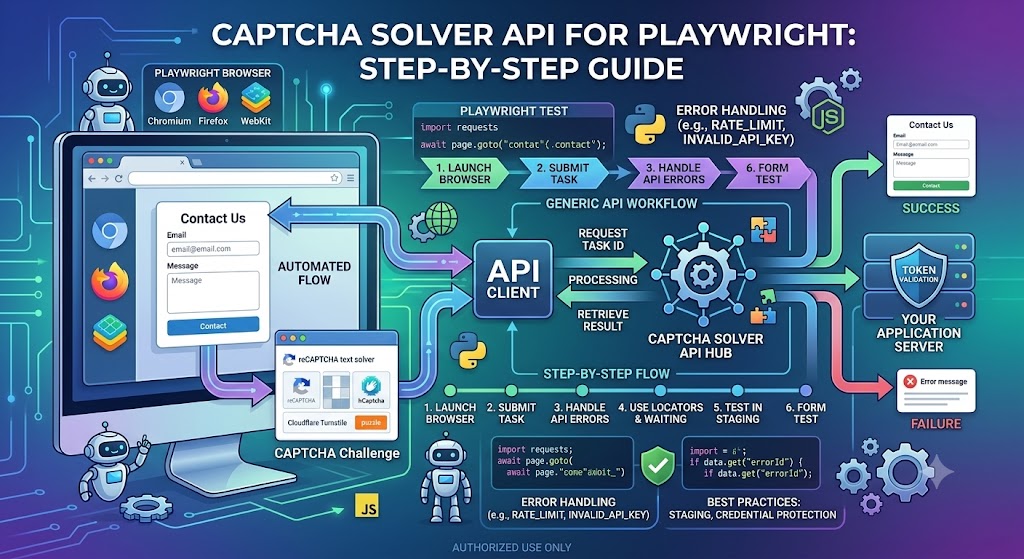
Recommended next step: Explore related guides on CAPTCHA API error handling, Python API integration, Playwright automation, and CAPTCHA API pricing to build a more complete understanding of the topic.