How to Integrate a CAPTCHA Solver API with Node.js: A Complete Guide
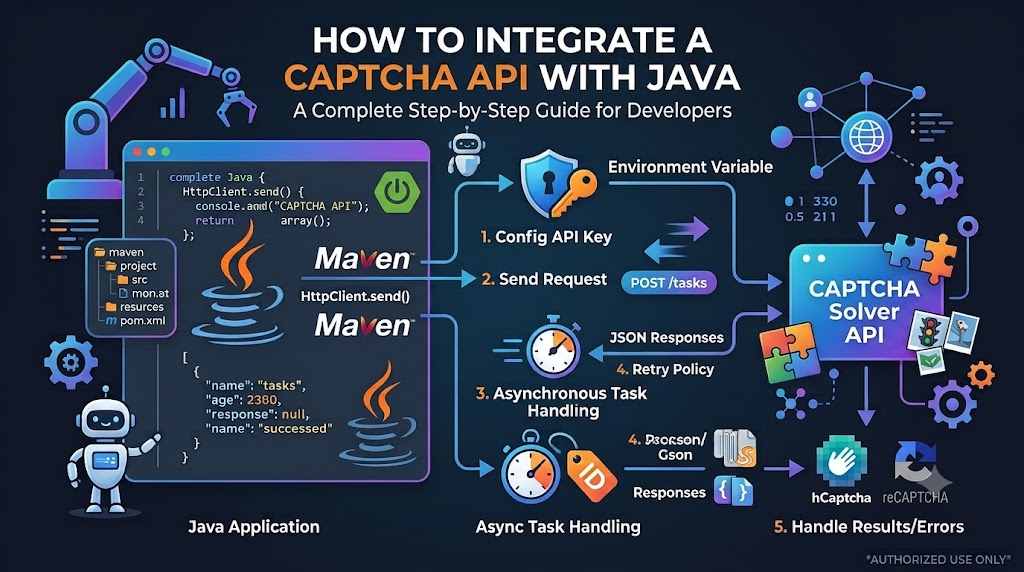
Integrating a CAPTCHA API with Node.js can help developers automate authorized testing workflows, handle CAPTCHA-related tasks in supported applications, and build more efficient backend services. With Node.js, you can send HTTP requests, process JSON responses, manage asynchronous operations, and connect external APIs to your existing applications.
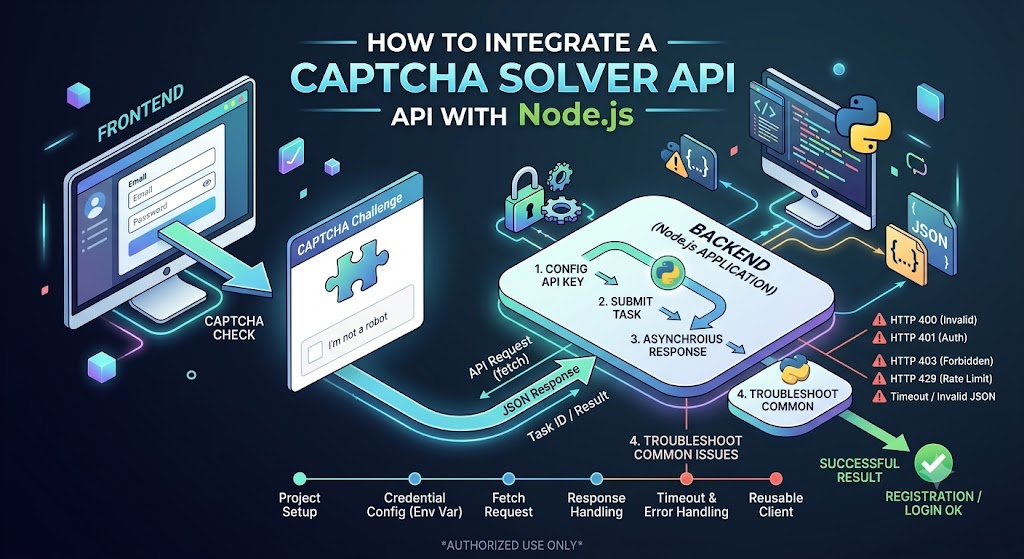
In this guide, you will learn how to integrate a CAPTCHA API with Node.js, configure API credentials securely, send requests, handle asynchronous responses, and troubleshoot common integration issues.
The examples use generic API request structures for educational purposes. Replace the placeholder endpoints, task parameters, and response fields with those documented by your API provider. Always use CAPTCHA-solving services only on systems you own or are explicitly authorized to test.
What Is a CAPTCHA Solver API?
A CAPTCHA solver API is a service that allows an application to submit a supported CAPTCHA-related task through an API request and receive a response from the service.
Instead of manually handling every operation, a developer can integrate the service into an application using HTTP requests and structured data, typically JSON.
Depending on the provider, an API may support different task types and processing methods. Before integrating one, verify the supported CAPTCHA types, required parameters, authentication method, response format, and usage limits in the official documentation.
Why Use Node.js for API Integration?
Node.js is a practical choice for API integrations because it offers:
- Asynchronous processing: Handle network requests without blocking the main execution flow.
- Built-in HTTP capabilities: Modern Node.js versions include the
fetch()API. - JSON support: Parse and generate JSON data easily.
- Broad ecosystem: Connect API services to Express applications, automation tools, and backend systems.
- Flexible deployment: Run integration code locally, on a server, or within a supported cloud environment.
These capabilities make Node.js suitable for building API clients and authorized testing tools.
Prerequisites
Before starting, make sure you have:
- Node.js installed on your computer.
- Basic knowledge of JavaScript and asynchronous functions.
- An API account and API key from your chosen provider, if required.
- Access to the provider's official API documentation.
- A test environment where you are authorized to perform the intended operations.
Check your installed versions by running:
node --version
npm --version
Use a supported, maintained Node.js release whenever possible.
Step 1: Create a Node.js Project
Create a project directory and initialize it with npm:
mkdir captcha-api-nodejs
cd captcha-api-nodejs
npm init -y
For the examples below, use a modern Node.js release that supports native fetch().
Create a file named index.js:
touch index.js
On Windows Command Prompt, you can create the file with:
type nul > index.js
You can now add your API integration code.
Step 2: Configure Your API Key Securely
Avoid placing API keys directly in source code. Hardcoded credentials can accidentally become public when code is committed to a repository or shared with other developers.
Instead, store your API key in an environment variable.
For example, on macOS or Linux:
export CAPTCHA_API_KEY="your_api_key_here"
In Windows PowerShell:
$env:CAPTCHA_API_KEY="your_api_key_here"
Your application can access the variable using:
const apiKey = process.env.CAPTCHA_API_KEY;

if (!apiKey) {
  throw new Error("Missing CAPTCHA_API_KEY environment variable");
}
The placeholder value must be replaced with your actual credential in your local environment. Never publish real API keys in a public repository, browser-side JavaScript, or screenshots.
For production applications, use your deployment platform's secret-management mechanism.
Step 3: Send an HTTP Request with Node.js
Most REST APIs accept HTTP requests and return structured responses. The exact request method and body depend on the provider.
The following example demonstrates the general pattern for sending a JSON request using Node.js.
Important: The URL, endpoint path, and payload below are illustrative placeholders, not verified AllCaptcha API specifications.
const apiKey = process.env.CAPTCHA_API_KEY;

async function sendApiRequest() {
  if (!apiKey) {
    throw new Error("CAPTCHA_API_KEY is not configured");
  }

  const response = await fetch(
    "https://api.example.com/replace-with-documented-endpoint",
    {
      method: "POST",
      headers: {
        "Content-Type": "application/json",
        "Authorization": `Bearer ${apiKey}`
      },
      body: JSON.stringify({
        // Replace these fields with the provider's
        // documented request parameters.
        example: "replace-with-supported-parameter"
      })
    }
  );

  if (!response.ok) {
    throw new Error(`API request failed: HTTP ${response.status}`);
  }

  return response.json();
}

sendApiRequest()
  .then((data) => {
    console.log("API response received");
    console.log(data);
  })
  .catch((error) => {
    console.error("Integration error:", error.message);
    process.exitCode = 1;
  });
This example demonstrates HTTP request handling, authentication-header placement, JSON serialization, and error detection. Some providers use a different authentication header or request format, so consult the official documentation before using it.
Step 4: Understand the API Request and Response
Before implementing the complete workflow, identify how your provider processes requests.
A typical asynchronous API may use the following sequence:
- Your application submits a task.
- The API returns a task identifier or another reference.
- Your application checks the task status.
- The API returns a final result, a pending status, or an error.
Not every API follows this design. Some services return results directly, use webhooks, or implement a different task lifecycle.
Example of a Generic JSON Response
A hypothetical response might look like this:
{
  "success": true,
  "taskId": "example-task-id",
  "status": "processing"
}
This is an illustrative JSON structure, not an actual AllCaptcha response.
Check the provider's documentation to determine which fields are available and how to interpret them. Your code should not assume that fields such as success, taskId, or status exist unless the API defines them.
Handling an Asynchronous Result
If the provider uses a task-based workflow, your application may need to wait for the task to finish.
A robust implementation should:
- Track the task identifier returned by the API.
- Follow the documented status-checking procedure.
- Respect the provider's recommended polling interval.
- Stop after a defined timeout.
- Handle failed, expired, or unsupported tasks.
- Avoid repeatedly submitting the same task when the original request may already have succeeded.
These practices help prevent unnecessary requests and make failures easier to diagnose.
Step 5: Add Timeout and Error Handling
Network requests can fail for many reasons, including connectivity problems, invalid credentials, unsupported parameters, and temporary service issues.
Your integration should distinguish between HTTP errors, network failures, and errors returned inside a valid JSON response.
The following example adds a request timeout:
async function postJson(url, payload, apiKey) {
  const controller = new AbortController();
  const timeout = setTimeout(() => controller.abort(), 15000);

  try {
    const response = await fetch(url, {
      method: "POST",
      headers: {
        "Content-Type": "application/json",
        "Authorization": `Bearer ${apiKey}`
      },
      body: JSON.stringify(payload),
      signal: controller.signal
    });

    const body = await response.text();

    if (!response.ok) {
      throw new Error(
        `HTTP ${response.status}: ${body.slice(0, 300)}`
      );
    }

    try {
      return JSON.parse(body);
    } catch {
      throw new Error("The API returned invalid JSON");
    }
  } catch (error) {
    if (error.name === "AbortError") {
      throw new Error("The API request timed out");
    }

    throw error;
  } finally {
    clearTimeout(timeout);
  }
}
Replace the example URL and payload with the documented values for your provider.
Common Integration Errors
| Problem | Possible cause | Recommended action |
|---|---|---|
| HTTP 400 | Invalid request format or missing parameters | Validate the payload against the API documentation |
| HTTP 401 | Missing or invalid authentication | Check the API key and authentication format |
| HTTP 403 | Access or permission restriction | Review account permissions and provider policies |
| HTTP 429 | Rate limit exceeded | Reduce request frequency and follow any retry guidance |
| HTTP 500 or higher | Server-side failure | Retry cautiously when appropriate and check service status |
| Request timeout | Network delay or slow processing | Use suitable timeouts and follow the documented task workflow |
| Invalid JSON | Unexpected or malformed response | Inspect the response safely and verify the endpoint |
These HTTP statuses are general conventions. The exact meaning of an error, including application-level errors returned with HTTP 200, depends on the provider.
Step 6: Build a Reusable API Client
If multiple parts of your application need to call the same API, place the request logic in a reusable function or module.
For example, create captchaClient.js:
const API_KEY = process.env.CAPTCHA_API_KEY;
const API_URL = process.env.CAPTCHA_API_URL;

async function requestApi(payload) {
  if (!API_KEY) {
    throw new Error("CAPTCHA_API_KEY is not configured");
  }

  if (!API_URL) {
    throw new Error("CAPTCHA_API_URL is not configured");
  }

  const response = await fetch(API_URL, {
    method: "POST",
    headers: {
      "Content-Type": "application/json",
      "Authorization": `Bearer ${API_KEY}`
    },
    body: JSON.stringify(payload)
  });

  if (!response.ok) {
    throw new Error(`API request failed with HTTP ${response.status}`);
  }

  return response.json();
}

module.exports = { requestApi };
Then import the function into another file:
const { requestApi } = require("./captchaClient");

async function main() {
  const result = await requestApi({
    // Insert the documented request fields here.
  });

  console.log("Request completed");
  console.log(result);
}

main().catch((error) => {
  console.error(error.message);
  process.exitCode = 1;
});
This example uses CommonJS modules. If your project uses ECMAScript modules, use the corresponding import and export syntax instead.
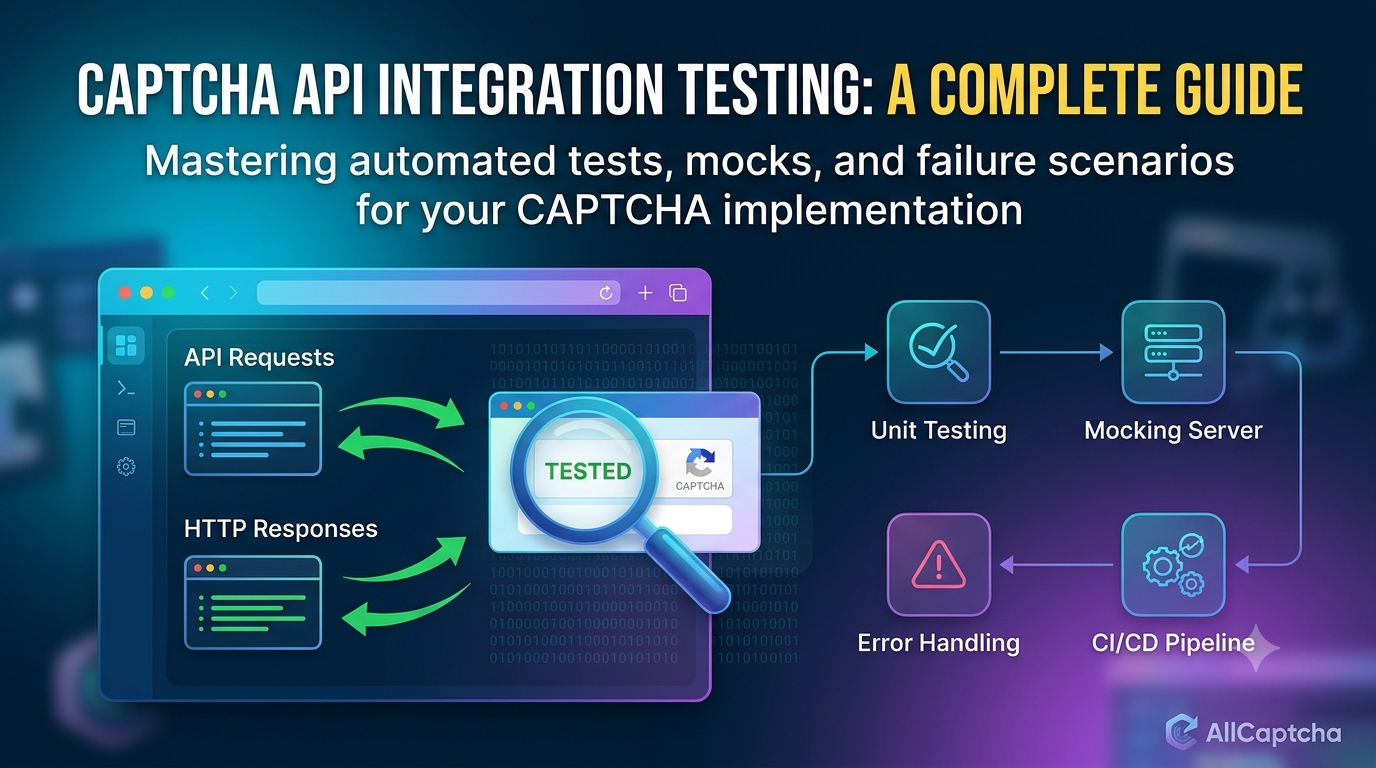
Before running the code, configure CAPTCHA_API_URL with the actual endpoint documented by your provider. The sample payload is intentionally incomplete because the required fields vary between APIs.
Step 7: Test the Integration Safely
Test your implementation before using it in a production application.
A useful testing checklist includes:
- Confirm that the API key is loaded correctly.
- Verify the request method, endpoint, headers, and body.
- Test how the application handles malformed input.
- Simulate network timeouts and server errors.
- Confirm that sensitive information is not written to logs.
- Check that retries do not accidentally create duplicate tasks.
- Validate the integration against a staging environment or an official test mode.
For applications that use CAPTCHA to protect login, registration, payment, or other sensitive operations, prefer provider-supported test keys, mocks, or staging workflows. Do not use an API integration to circumvent security controls on systems without authorization.
Best Practices for Node.js CAPTCHA API Integration
1. Keep Credentials on the Server
Do not expose private API credentials in frontend JavaScript or public mobile applications. Route requests through a backend that can securely manage credentials and permissions.
2. Validate Inputs
Check required fields before sending requests. Reject malformed data early and avoid forwarding arbitrary user-supplied values to an external API.
3. Use Timeouts
Set reasonable request timeouts so a slow external service does not leave your application waiting indefinitely.
4. Handle Rate Limits
If the provider returns HTTP 429 or documents a rate limit, reduce request frequency and follow its retry instructions. Use bounded exponential backoff with jitter where appropriate.
5. Avoid Excessive Polling
For asynchronous tasks, follow the documented polling interval. If the service supports webhooks, they may be a better fit for workflows that do not need immediate results.
6. Protect Logs
Avoid logging API keys, sensitive request data, or complete responses that may contain private information. Record useful diagnostics such as request IDs, durations, status codes, and sanitized error messages.
7. Monitor Usage and Failures
Track request volume, latency, error rates, and provider usage limits. Monitoring helps identify configuration mistakes and unexpected traffic before they affect the application.
Frequently Asked Questions
Can I integrate a CAPTCHA solver API with Node.js?
Yes. Node.js can communicate with REST APIs using fetch() or HTTP client libraries. The integration details depend on the provider's authentication method, supported task types, and response format.
Do I need Axios to make API requests?
No. Modern Node.js versions include native fetch(), which is sufficient for many integrations. Axios is an optional alternative if your project already uses it or needs its additional features.
How do I store my API key in Node.js?
Use environment variables or a managed secrets service. Avoid committing credentials to source control or exposing them in browser-side code.
Why is my API request returning HTTP 401?
A 401 response generally indicates an authentication problem. Check whether your API key is valid, whether the required authentication header is correct, and whether the key belongs to the expected environment.
What should I do if the API request times out?
Check your network connection, endpoint configuration, and timeout settings. If the provider uses asynchronous tasks, follow its documented task-status workflow instead of repeatedly submitting new requests.
Does every CAPTCHA API use the same request format?
No. Providers may use different endpoints, authentication schemes, parameter names, task identifiers, and response structures. Always use the official documentation for the service you integrate.
Can I use this integration in a production application?
You can use a properly tested integration in an authorized application, provided that you follow the API provider's terms, security requirements, and applicable laws. Use staging environments or official test modes to validate security-sensitive workflows.
Conclusion
Integrating a CAPTCHA API with Node.js involves more than sending a single HTTP request. A reliable implementation needs secure credential management, correct request formatting, asynchronous processing where applicable, sensible timeouts, error handling, and usage monitoring.
Start by confirming your provider's official API documentation, then build a small test client before connecting it to your larger application. Keep credentials server-side, handle failures deliberately, and use the service only within authorized workflows.
For more developer resources, explore AllCaptcha's related guides on API error handling, Python integration, Selenium automation, and Playwright integration.
SEO Metadata
SEO Title: How to Integrate a CAPTCHA Solver API with Node.js
Focus Keyword: captcha solver api nodejs
URL Slug: captcha-solver-api-nodejs
Meta Description: Learn how to integrate a CAPTCHA solver API with Node.js using HTTP requests, secure API keys, JSON responses, timeouts, and error handling.
Secondary Keywords:
- CAPTCHA API Node.js integration
- Node.js REST API tutorial
- CAPTCHA API JavaScript
- Node.js API authentication
- CAPTCHA API error handling
- asynchronous API requests in Node.js
Suggested H1: How to Integrate a CAPTCHA Solver API with Node.js: A Complete Guide
Suggested Internal Links:
- CAPTCHA Solver API with Python
- CAPTCHA Solver API for Selenium
- CAPTCHA Solver API for Playwright
- CAPTCHA API Error Codes: Common Errors and How to Fix Them
- Best CAPTCHA Solver APIs for Automation in 2026
Suggested Image Alt Text: Node.js CAPTCHA API integration workflow showing HTTP requests, JSON responses, authentication, and error handling.
Recommended Schema: Article and FAQPage, provided the FAQ structured data accurately matches the visible questions and answers on the page.